Learn how to generate and insert QR codes dynamically in your PowerPoint templates.
Overview
QR codes can be generated dynamically in PowerPoint templates using placeholders. Each QR code can contain unique data for each slide, such as URLs, contact information, or custom data.
How QR Codes Work
QR codes are generated from text data and displayed as images in your presentation. The QR code image is created during the merge process based on the data provided.
Basic Usage
- Insert an image placeholder in your PowerPoint template (any image will work)
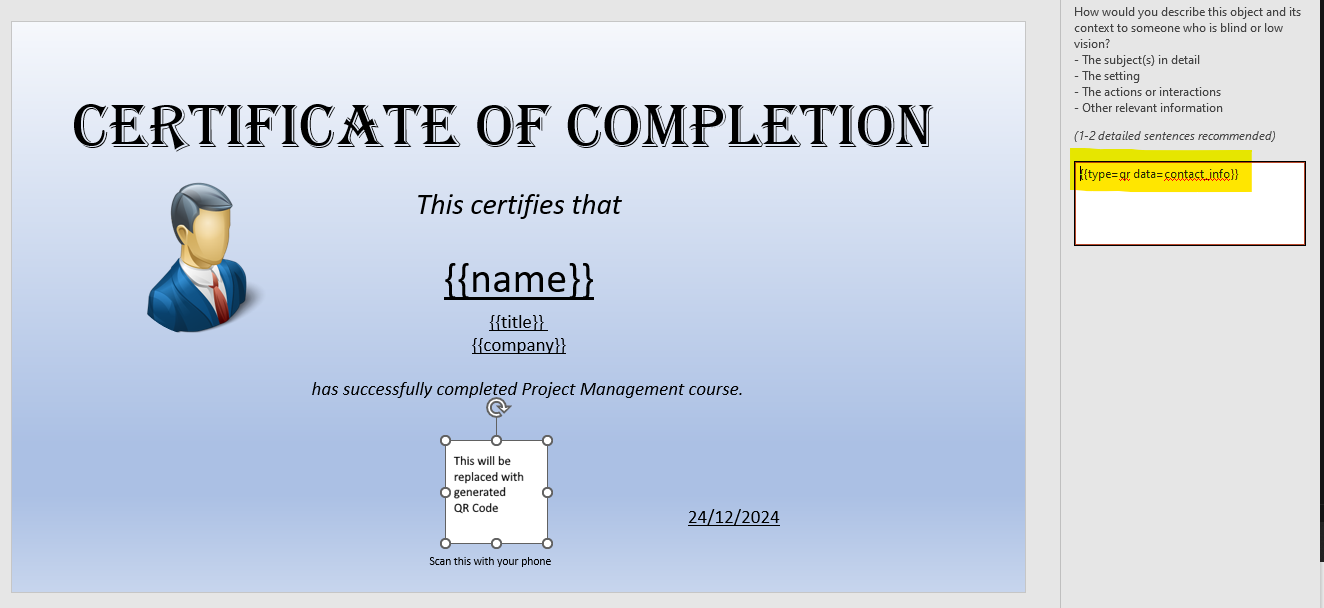
- Set the image's alternative text (Alt-text) to the QR code placeholder expression
- Provide the QR code content (URL, text, etc.) in your data source
- During merging, QR codes are generated and inserted in place of the placeholder image
Syntax
Set the Alt-text field to one of these expressions:
Explicit type syntax:
{{type=qr data=contact_info}}
The data= parameter specifies which field from your data source contains the text to encode in the QR code.
Data Structure
QR codes require text data that will be encoded. Common use cases:
URL QR Code
Data:
{
  "name": "John Doe",
  "profile_url": "https://example.com/profile/john-doe"
}
Template: Set Alt-text to {{data=profile_url type=qr}}
Contact Information QR Code
Data:
{
  "name": "John Doe",
  "contact_info": "John Doe, Example Corp, Manager, john.doe@example.com"
}
Template: Set Alt-text to {{data=contact_info type=qr}}
Or with vCard format:
{
  "name": "John Doe",
  "qr_code_vcard": "BEGIN:VCARD\nVERSION:3.0\nFN:John Doe\nTEL:+1234567890\nEMAIL:john@example.com\nEND:VCARD"
}
Template: Set Alt-text to {{data=qr_code_vcard type=qr}}
Custom Text QR Code
Data:
{
  "name": "John Doe",
  "coupon_code": "XCSFP"
}
Template: Set Alt-text to {{data=coupon_code type=qr}}
See: How to create personalized coupons with QR codes using Excel and PowerPoint
QR Code Types
URL QR Codes
Generate QR codes that link to web pages:
Data:
{
  "product_url": "https://example.com/products/widget-a"
}
Template: Set Alt-text to {{data=product_url type=qr}}
Contact QR Codes (vCard)
Generate QR codes with contact information:
Data:
{
  "contact_info": "John Doe, Example Corp, Manager, john.doe@example.com"
}
Template: Set Alt-text to {{data=contact_info type=qr}}
Coupon/Discount Codes
Generate QR codes for personalized coupons:
Data (Excel):
| coupon_code |
|---|
| XCSFP |
| ABC123 |
Template: Set Alt-text to {{data=coupon_code type=qr}}
See: How to create personalized coupons with QR codes using Excel and PowerPoint
Best Practices
1. QR Code Size
- Make QR codes large enough to scan easily
- Minimum recommended size: 2cm x 2cm (about 0.8 inches)
- Larger QR codes are easier to scan from a distance
2. QR Code Placement
- Place QR codes in easily accessible locations
- Avoid placing near edges or corners
- Leave white space around QR codes (quiet zone)
3. Data Length
- Keep QR code data concise when possible
- Longer data creates more complex QR codes
- Very long data may require larger QR codes
4. Error Correction
- QR codes include error correction for reliability
- Higher error correction = more reliable but larger code
- Standard error correction works for most use cases
Common Use Cases
Product Information
Link to product pages, specifications, or purchase pages:
{
  "product_name": "Widget A",
  "product_qr": "https://example.com/products/widget-a"
}
Contact Information
Share contact details via vCard QR codes:
{
  "name": "John Doe",
  "email": "john@example.com",
  "phone": "+1234567890",
  "qr_vcard": "BEGIN:VCARD\nVERSION:3.0\nFN:{{name}}\nEMAIL:{{email}}\nTEL:{{phone}}\nEND:VCARD"
}
Event Registration
Link to event registration or information pages:
{
  "event_name": "Annual Conference 2025",
  "registration_url": "https://example.com/events/conference-2025/register"
}
Employee Badges
Include employee information or access codes:
{
  "employee_id": "EMP-12345",
  "employee_name": "John Doe",
  "qr_data": "EMP-12345|John Doe"
}
Formatting
QR Code Appearance
- QR codes produced are black and white
- Ensure good contrast for scanning
Size and Scaling
- QR codes scale proportionally
- Maintain aspect ratio (square)
- Don't distort QR codes
Troubleshooting
QR Code Not Generating
- Check Data: Ensure QR code data is provided in your data source
- Verify Format: Check that data format is correct
- Check Placeholder: Verify placeholder name matches data field
QR Code Not Scanning
- Size: Ensure QR code is large enough to scan
- Quality: Check image quality and resolution
- Contrast: Ensure good contrast between code and background
- Quiet Zone: Ensure white space around QR code
Incorrect Data
- Data Format: Verify data format matches expected type
- Encoding: Check character encoding (UTF-8 recommended)
- Special Characters: Some special characters may need encoding
Tips
-
Test Scanning: Always test QR codes after generation to ensure they scan correctly
-
Print Quality: For printed presentations, ensure high-quality printing for QR codes
-
Backup: Consider including the URL or text near the QR code as a backup
-
Accessibility: Provide alternative access methods for users who can't scan QR codes
For more information, see Images in PPTX Template.