Learn how to use placeholders in PowerPoint speaker notes to create personalized presentation notes.
Overview
Speaker notes in PowerPoint can contain placeholders that are replaced with data during the merge process. This allows you to create personalized notes for each presentation.
Using Placeholders in Notes
Speaker notes support the same placeholder syntax as other text elements in PowerPoint.
Basic Usage
- Open the Notes pane in PowerPoint (View > Notes)
- Type your notes with placeholders:
Remember to discuss with {{customer_name}} about {{special_requirements}}. - The placeholders will be replaced with actual values from your data source
Example
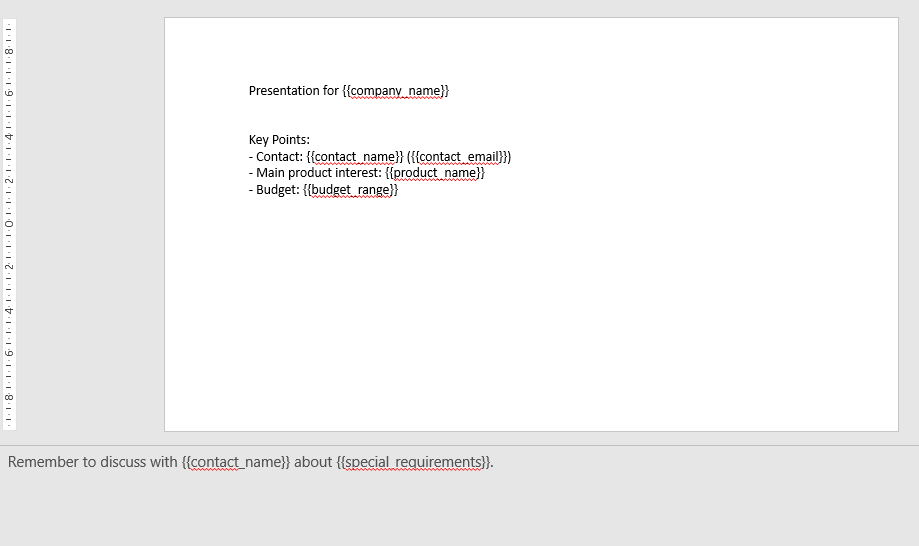
Template Notes:
Presentation for {{company_name}}

Key Points:
- Contact: {{contact_name}} ({{contact_email}})
- Main product interest: {{product_name}}
- Budget: {{budget_range}}

Notes:
Remember to discuss with {{contact_name}} about {{special_requirements}}.
Data:
[{
  "company_name": "Acme Corp",
  "contact_name": "John Doe",
  "contact_email": "john@acme.com",
  "product_name": "Premium Widget",
  "budget_range": "$50,000 - $100,000",
  "special_requirements": "custom integration needs"
}]
Result:
Presentation for Acme Corp

Key Points:
- Contact: John Doe (john@acme.com)
- Main product interest: Premium Widget
- Budget: $50,000 - $100,000

Notes:
Remember to discuss with John Doe about custom integration needs.
Use Cases
Personalized Presentations
Create customized notes for each recipient or audience:
- Customer-specific talking points
- Personalized reminders
- Customized examples
Presentation Scripts
Include dynamic content in your presentation scripts:
- Speaker notes with personalized information
- Customized examples for each audience
- Specific data points to mention
Meeting Notes
Prepare notes for meetings or presentations:
- Attendee information
- Discussion points
- Action items
Best Practices
1. Keep Notes Concise
- Notes should be brief and actionable
- Focus on key points and reminders
- Avoid overly long notes
2. Use Clear Placeholders
- Use descriptive placeholder names
- Match placeholder names to your data structure
- Test with sample data
3. Organize Content
- Use bullet points for readability
- Group related information
- Use formatting for emphasis
4. Handle Missing Data
- Consider what happens if data is missing
- Use default text or handle gracefully
- Test with incomplete data
Formatting
Notes support basic text formatting:
- Bold and italic text
- Bullet points and numbered lists
- Line breaks
However, complex formatting may not be preserved as well as in slide content.
Tips
-
Test Notes: Always test your notes template with sample data
-
Keep It Simple: Simple text placeholders work best in notes
-
Privacy: Be mindful of sensitive information in notes
-
Printing: Notes can be printed with slides for reference
Common Issues
Notes Not Updating
- Check Placeholder Names: Ensure placeholder names match data field names exactly
- Verify Data: Check that your data contains the expected fields
- Check Notes Pane: Make sure you're editing in the Notes pane, not slide content
Formatting Lost
- Basic formatting is preserved
- Complex formatting may need to be reapplied
- Test with sample data to verify
Long Text
- Very long text in notes may be truncated
- Consider breaking into multiple paragraphs
- Test with actual data lengths
For more information, see Basic Placeholders.