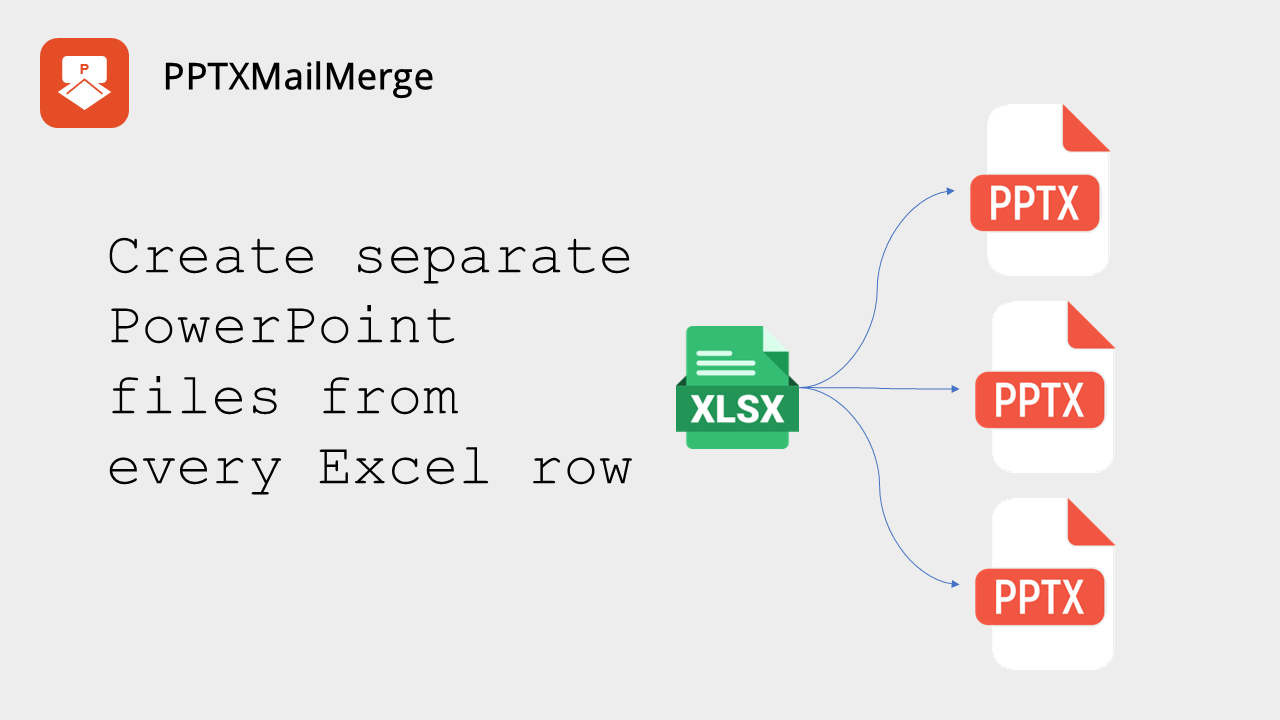
When people create certificates in bulk from Excel, two questions come up almost every time: can I get a separate PowerPoint for each person? and can I give each file a custom name? Yes to both.
If you have recipient or record data in Excel and a PowerPoint template, you do not have to end up with one giant presentation. You can generate a separate PowerPoint file for every Excel row—each file filled with that row’s data—ready to email, archive, or hand out individually. You can also control how those files are named, using values from your spreadsheet.
Your template can have one slide or many. Each output file keeps the same number of pages as the template: a three-slide template produces three-slide files, one per data row.
Which tool should you use?
Certificates
If you are issuing certificates (training completions, awards, credentials), use the dedicated certificate tool:
PowerPoint Certificate Generator
That is where bulk certificate creators usually land—and where those “separate files” and “custom filenames” options live for certificates.
Everything else
For reports, personalized decks, offers, status updates, and other non-certificate use cases, use the generic Excel-to-PowerPoint merge tool:
Excel to PowerPoint Merge Tool
Both tools work the same way at a high level: upload an Excel (XLSX) data file, upload a PowerPoint (PPTX) template with placeholders such as {{name}} (they both support more complex placeholders as needed, like images, QR codes, tables, or charts), then choose how output files should be packaged and named.
How to get separate files (one PowerPoint per Excel row)
Yes, you can have separate files. Here is how to turn that on for each tool.
Certificate tool
- Open the PowerPoint Certificate Generator.
- Upload your Excel file with one recipient (or certificate) per row.
- Upload your PowerPoint certificate template.
- In Output as single presentation or single file per data row, select Separate PowerPoint for each person.
- Optionally set a file name pattern (see below), then generate.
You will get one PowerPoint file per person, delivered together (typically as a ZIP archive for convenience).
Generic Excel to PowerPoint Merge Tool
- Open Excel to PowerPoint Merge Tool.
- Upload your Excel data file and PowerPoint template.
- In Output as single presentation or single file per data row, select File per data row (all delivered as ZIP file).
- Optionally set a file name pattern, then submit.
Each Excel row becomes its own PowerPoint file inside the ZIP download.
Custom filenames from your Excel data
Yes—you can use custom filenames too. When you generate separate files, set a fileNamePattern built from text plus placeholders that match columns in your Excel file. That way each download is named for the person or record it belongs to, instead of a generic default.
Examples:
certificate_{{name}}report_{{projectName}}_{{date}}status_{{id}}
Make the pattern unique. If two rows share the same name—for example two people named John Doe—a pattern like certificate_{{name}} can overwrite one file with the other. Prefer something that includes a unique column, such as:
certificate_{{name}}_{{id}}
This assumes your Excel file has both name and id columns, and that every row has values filled in for them. Leave the pattern empty if you are fine with default generated names.
Quick checklist
- Prepare Excel data: headers in the first row, one record per following row.
- Prepare a PowerPoint template with placeholders matching those headers (one or more slides).
- Choose the right tool: certificates or generic merge.
- Select the separate-file output option for that tool.
- Set a unique
fileNamePatternwhen you care about clear, non-colliding names. - Download the ZIP and use each PowerPoint file as needed.
That is all it takes to go from one Excel sheet and one template to many individual PowerPoint files — without copy-pasting slide by slide.